> For the complete documentation index, see [llms.txt](https://support.holidayhero.com/llms.txt). Markdown versions of documentation pages are available by appending `.md` to page URLs; this page is available as [Markdown](https://support.holidayhero.com/the-basics/reservations/day-board.md).
# Day Board
***
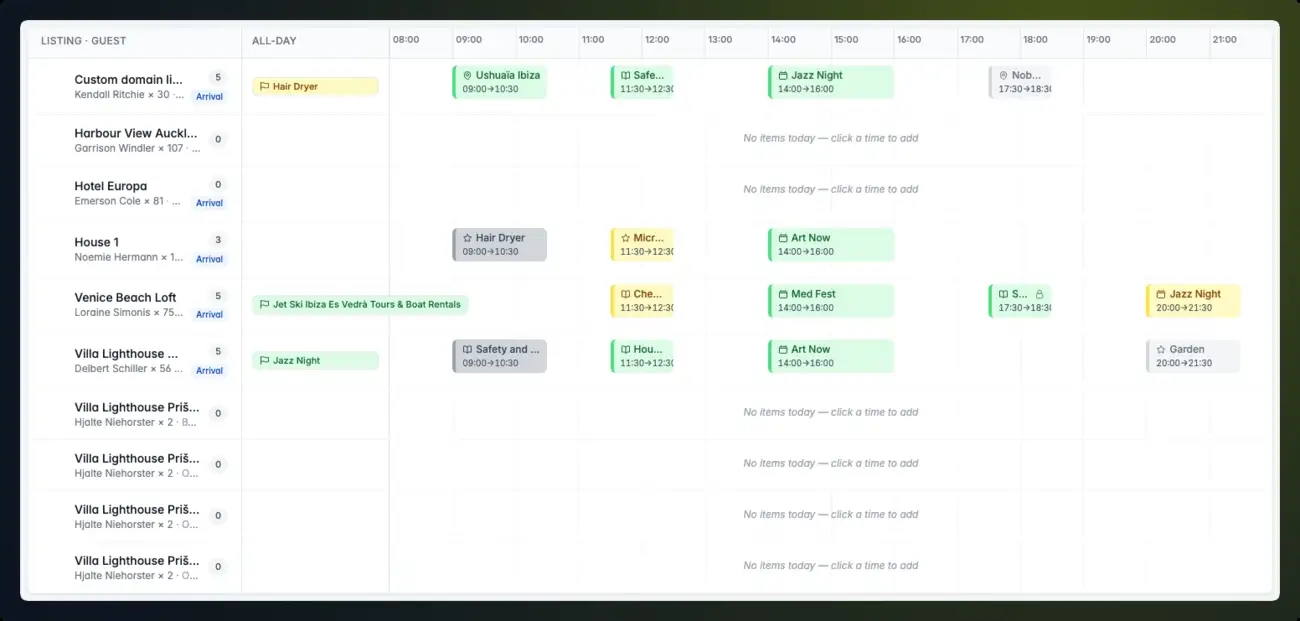
The Day Board: one row per stay, with the day's itinerary items on a timeline
#### What is the Day Board?
The **Day Board** shows everything happening across your properties on one day, at a glance. Every reservation staying that day gets a row — including the guests arriving and the guests leaving — and each row lays that guest's itinerary items for the day out on a timeline.
It is built for the front desk and the concierge: scan the day, spot who has what booked and when, and add or adjust itinerary items for a guest without opening each reservation.
You find it under **Reservations → Day Board** in the menu.
{% hint style="info" %}
The board works with the same itinerary items as a reservation's own **Itinerary** tab — anything you add or change here shows up there, and the other way round.
{% endhint %}
#### Picking a day
The board opens on today. The controls at the top right move it:
* The **‹** and **›** arrows go to the previous and next day.
* The date button opens a date picker for any other day.
* **Today** jumps back to today.
#### Reading the board
Rows are sorted by listing name. Each row has three parts.
**The listing and guest** — on the left: the listing's photo and name, the guest's name with the number of guests (for example **Emma Johansson × 2**), and the reservation number. The grey badge counts the guest's items on the day. Click anywhere in this cell to open the reservation.
| Badge | Meaning |
| ------------------------------------------------ | ------------------------------------------- |
| **Arrival** | The guest checks in on this day. |
| **Departure** | The guest checks out on this day. |
| *No badge* | A stayover — the guest is in-house all day. |
A day-use booking that checks in and out on the same day carries both badges.
**All-day** — the middle column holds the items for this day that have no time (**Specific day** items), as small chips marked with a flag.
**The timeline** — the right-hand part runs from **08:00** to **22:00**, widened automatically when an item starts earlier or ends later, so nothing is cut off. Every timed item (**At a time**) is a block from its start to its end time. An item without an end time is drawn as one hour.
Items are coloured by status:
| Colour | Status |
| ---------------------------------------------------- | ----------- |
| Green | `CONFIRMED` |
| Yellow | `REQUESTED` |
| Grey | `DRAFT` |
| Red | `DECLINED` |
| Light grey | `CANCELLED` |
A lock icon on an item means it is **Internal** — your team sees it, the guest does not. The **Legend** below the board repeats these colours and icons.
{% hint style="info" %}
Times are shown in each listing's own timezone, so an 18:00 dinner sits at 18:00 on the board however far the listing is from you. Items that apply to the **Entire stay** are not tied to a day, so they don't appear on the board — find them on the reservation's **Itinerary** tab.
{% endhint %}
#### Filtering the board
Click **Filters** to narrow what the board shows. Everything is filtered instantly, without reloading.
| Filter | What it does |
| ------------------------------------------------------------- | ------------------------------------------------------------------------------------------------------------------------------------ |
| **Day** — Arrivals, Stayovers, Departures | Shows or hides whole reservations by how they relate to the day. The number next to each option is how many reservations fall in it. |
| **Status** — Confirmed, Requested, Draft, Declined, Cancelled | Shows or hides items by status. |
| **Type** — Scheduled, All-day | Shows or hides timed items or all-day items. |
| **Show internal items** | Untick to hide items your guests can't see. |
While a filter is active, the **Filters** button turns blue with a dot. Click **Reset** in the panel to show everything again.
When a **Status**, **Type** or internal filter is narrowing the board, reservations with no matching items are hidden, so you only see the stays that have something you are looking for. Filters are not saved: they reset when you change day or reload the page.
#### Adding an item
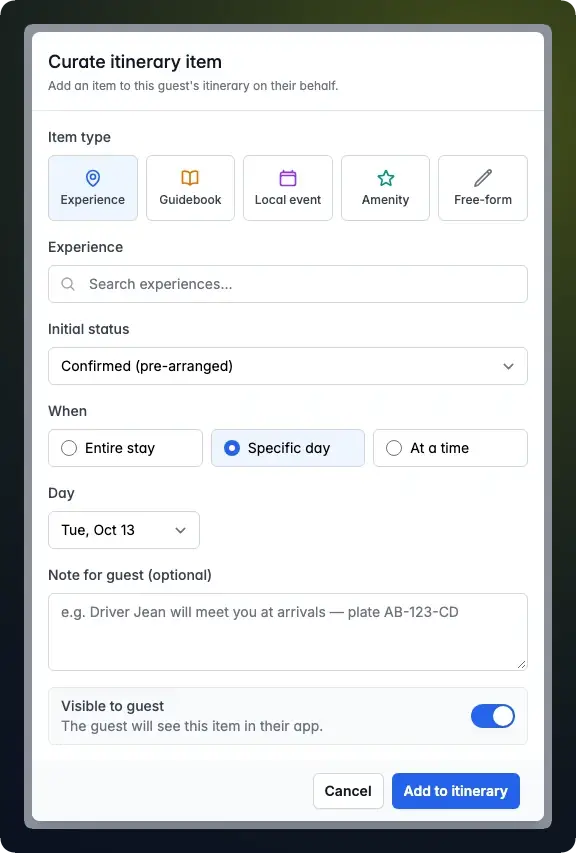
The Curate itinerary item window
You add an item by clicking straight onto the guest's row:
* **On the timeline** — hover over an empty spot and a **+** marks the 15-minute slot under your pointer. Click it to add a timed item starting at that time.
* **In the All-day column** — click an empty part of the column to add an all-day item.
Either way the **Curate itinerary item** window opens for that guest, with the day — and the start time, when you clicked the timeline — already filled in.
1. Pick the **Item type** — **Experience**, **Guidebook**, **Local event**, **Amenity** or **Free-form** — and choose the item. A free-form item needs a **Title**, and can carry an optional link.
2. Set the **Initial status**: **Confirmed (pre-arranged)**, **Requested (needs guest confirmation)** or **Draft**.
3. Under **When**, choose **Entire stay**, **Specific day** or **At a time**, then the **Day** and — for a timed item — the **Start** and **End**.
4. Optionally add a **Note for guest**.
5. Leave **Visible to guest** on for the guest to see it in their app, or switch it off to keep it internal.
6. Click **Add to itinerary**.
You come back to the board on the same day, with the new item in place.
#### Editing an item
Click any item on the board — a block on the timeline or a chip in the **All-day** column — to open **Edit itinerary item**. You can change:
| Field | Description |
| ----------------------------------- | ----------------------------------------------------------------------------------------------------------------------------------------------- |
| **Title (override)** | A title of your own, shown instead of the item's name. |
| **Status** | `DRAFT`, `REQUESTED`, `CONFIRMED`, `DECLINED` or `CANCELLED`. |
| **When** | Move the item between **Entire stay**, **Specific day** and **At a time**, and change its day and times. |
| **Remote URL** | A link that goes with the item. |
| **Inquiry note (visible to guest)** | A note the guest can read. |
| **Visible to guest** | Switch off to make the item internal. |
| **Attach documents** | Drop files (or click **Upload**) to attach them. Each file uploads as soon as you drop it. Attached documents are listed and open in a new tab. |
Click **Save changes** to apply them and return to the board.
To take an item off the guest's itinerary, click **Remove from itinerary** and confirm.
{% hint style="warning" %}
**Remove from itinerary** deletes the item from the reservation, not just from the board. If you only want it out of sight, set its status to **Cancelled** or switch **Visible to guest** off instead.
{% endhint %}
#### On a phone
On a narrow screen each row stacks: the guest first, then the all-day items, then a timeline that shows about five hours at a time. Swipe the timeline sideways to see the rest of the day — every row scrolls along, so the hours stay lined up.
***
#### Frequently Asked Questions
Why is a guest who is leaving today still on the board?
The board shows every reservation that overlaps the day, including the day of arrival and the day of departure. Those rows carry an **Arrival** or **Departure** badge. Untick **Arrivals** or **Departures** under **Filters** to hide them.
Why is a reservation missing from the board?
Cancelled reservations are left off. Otherwise, check your **Filters** — a hidden day type removes whole rows, and while a status, type or internal filter is active, reservations without a matching item are hidden too. Click **Reset** to see everything.
Why doesn't an item I added to the whole stay show up?
Items set to **Entire stay** aren't tied to a day, so they have no place on a single day's board. They are on the reservation's **Itinerary** tab.
Can the guest see items I add from the Day Board?
Yes, as long as **Visible to guest** is on when you save. Switch it off to keep the item internal — it then shows a lock icon on the board and never appears in the guest's app.
What times does the timeline show?
08:00 to 22:00 by default. When an item on the day starts earlier or ends later, the timeline widens to whole hours to include it.
Can I add items for a reservation from here without opening it?
Yes — that is what the board is for. Click an empty spot on the guest's timeline or in their **All-day** column. To open the reservation itself, click the listing and guest on the left of the row.
Do my filters stay set?
No. Filters only apply while you look at the day; moving to another day or reloading the page shows everything again.
***
Relations
* The board shows one row per reservation staying on the chosen day
* A row shows that reservation's itinerary items for the day — all-day items and timed items
* Items added or edited on the board are the same itinerary items as on the reservation's **Itinerary** tab
***
## Agent Instructions: Querying This Documentation
If you need additional information that is not directly available in this page, you can query the documentation dynamically by asking a question.
Perform an HTTP GET request on the current page URL with the `ask` query parameter:
```
GET https://support.holidayhero.com/the-basics/reservations/day-board.md?ask=
```
The question should be specific, self-contained, and written in natural language. The response will contain a direct answer to the question and relevant excerpts and sources from the documentation.
Use this mechanism when the answer is not explicitly present in the current page, you need clarification or additional context, or you want to retrieve related documentation sections.