> For the complete documentation index, see [llms.txt](https://support.holidayhero.com/llms.txt). Markdown versions of documentation pages are available by appending `.md` to page URLs; this page is available as [Markdown](https://support.holidayhero.com/the-basics/experiences/manifests.md).
# Manifests
***
The manifest list
#### What is a manifest?
A **manifest** is a running checklist of every guest who ordered one item on one day — the breakfast buffet on Tuesday, the 11:00 canal cruise, the spa on Saturday. Whoever is serving works down the list and ticks each order off as it is handed over.
A manifest gathers the orders from your guests' itineraries for you. You never type a guest in by hand:
* **It stays up to date.** Orders placed after you create the manifest are added automatically, and cancelled or declined orders drop off.
* **It is shared.** Every operator sees the same check-offs, so two colleagues can work the same list at once.
* **It is one per item per day.** A manifest belongs to a single item on a single day. Asking for a second one for the same item and day sends you to the existing one instead.
Manifests work for four kinds of item: **Experiences**, **Amenities**, **Guidebooks** and **Calendar Events**. You find them under **Experiences → Manifests** in the menu.
{% hint style="info" %}
Viewing manifests needs the **Itinerary Items → Read** permission; without it the **Manifests** menu item is hidden. Creating, deleting and ticking orders off need **Itinerary Items → Write**. See [Operator Details](/the-basics/workspace/operators/operator-details.md).
{% endhint %}
#### The manifest list
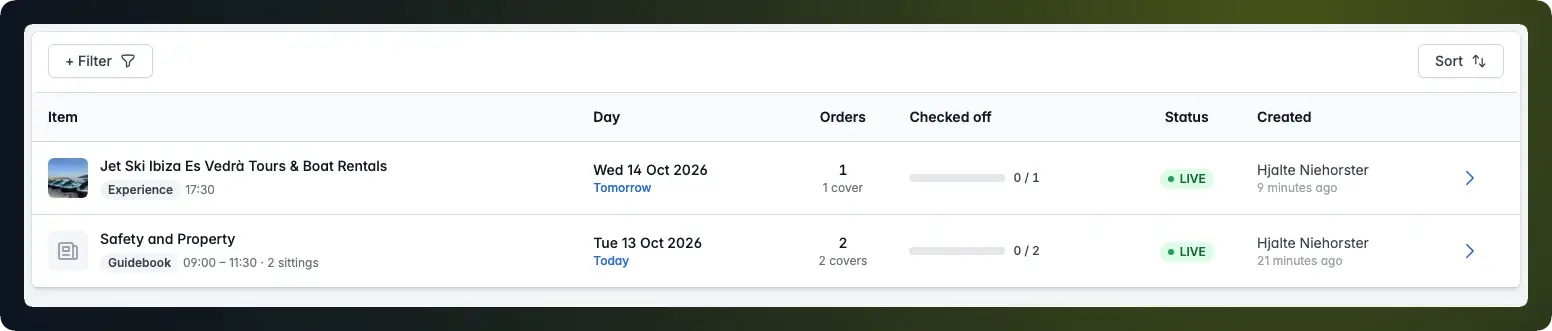
The list shows every manifest in the workspace, newest first.
| Column | Description |
| --------------- | ---------------------------------------------------------------------------------------------------------------------------------------------------------- |
| **Item** | The item the manifest is for, its type, and its sittings (for example `07:00 – 10:00 · 4 sittings`), or **All day** when the orders are for the whole day. |
| **Day** | The day the manifest covers, marked **Today**, **Tomorrow** or **Yesterday** where that applies. |
| **Orders** | How many orders are on it, with the number of covers underneath. |
| **Checked off** | A progress bar with how many orders have been ticked off so far. |
| **Status** | `LIVE` or `CLOSED` — see [Statuses](#statuses). |
| **Created** | Who created it and when. A manifest created without an operator — by an integration, for example — shows **Automated**. |
Use **+ Filter** to narrow the list by **Item type** or **Status**, and **Sort** to order it by day, creation date or ID. Click the arrow at the end of a row to open the manifest.
#### Statuses
| Status | Description |
| ------------------------------------------------- | --------------------------------------------------------------------------------------------------------------- |
| LIVE | The manifest is for today or a day still to come. New orders keep being added, and the screen refreshes itself. |
| `CLOSED` | The day has passed. The manifest stays readable as a record, with the check-offs it ended with. |
The status follows the calendar in your workspace's timezone — you never set it yourself. A manifest you create for today stays live until midnight.
#### Creating a manifest
The New Manifest page
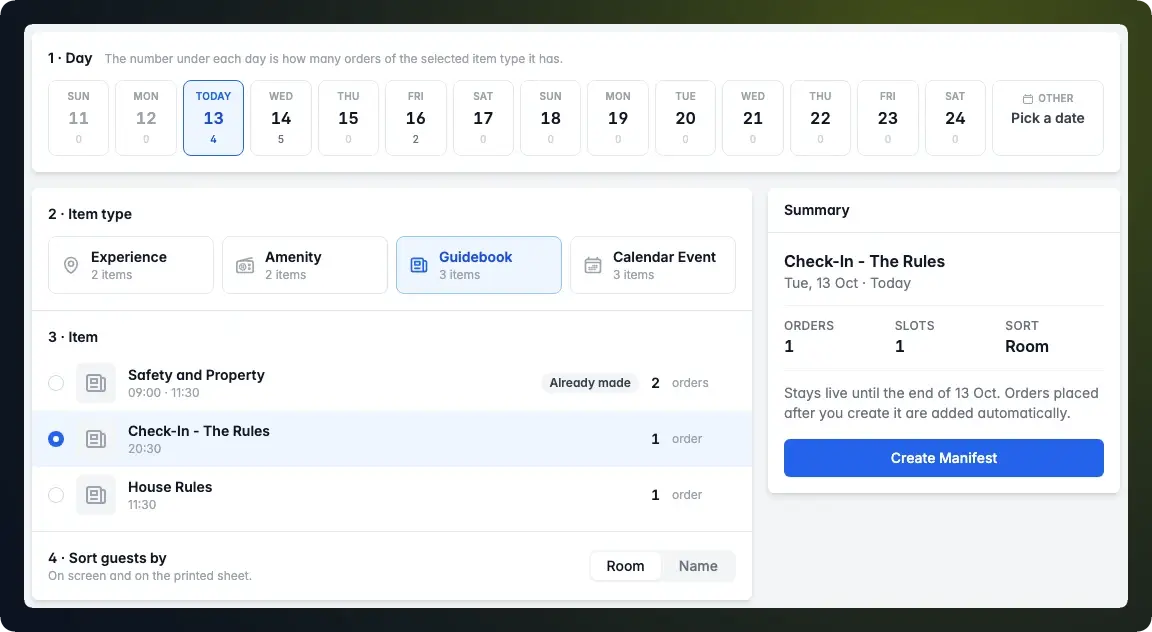
1. Go to **Experiences → Manifests** and click **New Manifest**.
2. **Day** — pick the day. The strip shows the two days before today, today, and the eleven days after it; use **Other** to pick any other date. The number under each day is how many orders of the selected item type fall on it.
3. **Item type** — choose **Experience**, **Amenity**, **Guidebook** or **Calendar Event**. Each card shows how many of its items have orders on the chosen day.
4. **Item** — choose the item. Only items that were actually ordered on that day are listed, busiest first, each with its sittings and order count.
5. **Sort guests by** — choose **Room** or **Name**. This is the order the printed sheet uses.
6. Check the **Summary** on the right — the item, the day, its orders and sittings — and click **Create Manifest**.
You land on the new manifest, ready to tick off.
{% hint style="info" %}
The days are your workspace's days, not UTC's. A manifest for a day in the past is allowed — useful for a record of yesterday's breakfast — but it opens `CLOSED`.
{% endhint %}
An item that already has a manifest on the chosen day is marked **Already made** in the list. Picking it shows a warning in the summary with an **Open it** link to the existing manifest, and **Create Manifest** stays disabled.
#### Working a manifest
A live manifest, with its header and the check-off list
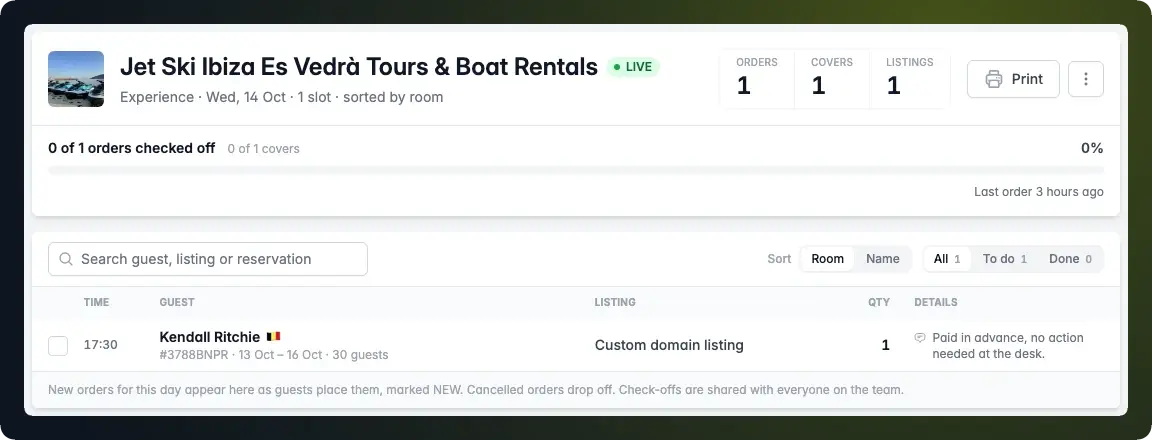
The header shows the item, its status and a summary line — item type, day, number of sittings and the saved sort. Next to it are three figures:
| Figure | Description |
| ------------ | ------------------------------------------------------------------------------------------------------------------------- |
| **Orders** | The number of orders on the manifest — one per order, however many people it is for. |
| **Covers** | The number of portions, places or units across those orders. An order for three breakfasts is one order and three covers. |
| **Listings** | How many different listings the guests are staying in. |
Below them, the progress bar shows how many orders — and how many covers — have been checked off. The grey chips count the covers per option guests picked (for example **Vegan 6**, **Continental 18**), so the kitchen knows what to prepare. **Last order** tells you whether orders are still coming in.
**The check-off list**
Each row is one order:
| Column | Description |
| ----------- | ----------------------------------------------------------------------------------------------------------------------------------- |
| **Time** | The sitting the order is for, or **All day** when it is for the whole day. Left out entirely on a manifest without sittings. |
| **Guest** | The name the reservation is booked under and their flag, with the reservation number, the stay and the number of guests underneath. |
| **Listing** | The listing — the room — the guest is staying in. |
| **Qty** | The covers on this order. |
| **Details** | The options the guest picked, one per line, and any note they left. |
To tick an order off, click anywhere on its row. The row turns grey with a green tick, and the progress bar moves straight away. Click it again to undo. Hover a ticked checkbox to see who checked it off.
Use the toolbar above the list to find your way around a long manifest:
* **Search** matches guest names, listing names and reservation numbers.
* **Sort** switches the list between **Room** and **Name** order. This only changes your screen — the saved sort, and the printed sheet, stay as they are.
* **All**, **To do** and **Done** narrow the list to every order, the outstanding ones or the ticked ones. The counts follow your search.
**Live updates**
A live manifest refreshes itself every 15 seconds. New orders slide into the list marked **NEW**, cancelled orders drop off, and ticks made by colleagues appear — without losing your place in the list or a tick you are making. The **NEW** marker stays until the order is ticked off.
Refreshing pauses while the browser tab is in the background, and stops for good once the manifest is `CLOSED`.
{% hint style="warning" %}
If a tick cannot be saved — for example because the connection dropped — the row flips back and a red message explains why. Tick it again once you are back online.
{% endhint %}
#### Printing a manifest
The printable A4 sheet
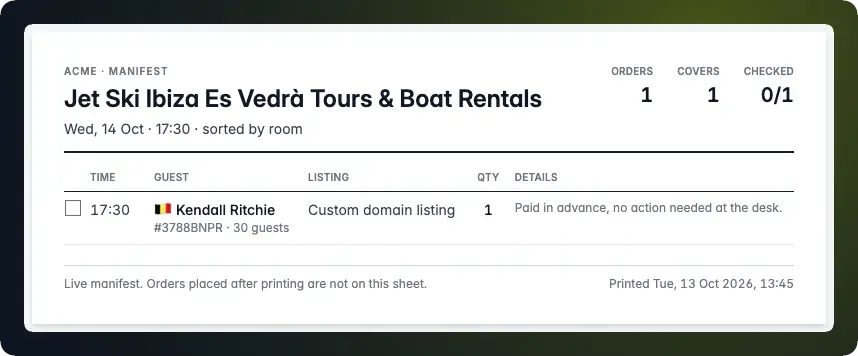
Click **Print** in the manifest's header to open the A4 sheet, then click **Print** again to send it to your printer (or save it as a PDF).
The sheet always holds the **whole** manifest, whatever you had searched for or filtered on screen. Rows are grouped by sitting, and within a sitting they follow the manifest's saved **Room** or **Name** order. Each row has a box to tick by hand; orders that were already checked off print ticked.
The footer records when the sheet was printed. On a live manifest it also warns that orders placed after printing are not on the paper — print again, or keep the screen open, for those.
#### Deleting a manifest
1. Open the manifest.
2. Click the `⋮` menu next to **Print** and choose **Delete**.
3. Confirm.
Deleting removes the manifest and its record of what was checked off. The orders themselves are not touched — they stay on the guests' itineraries, and you can create a new manifest for the same item and day afterwards.
***
#### Frequently Asked Questions
Can I create two manifests for the same item on the same day?
No. There is one manifest per item per day, so everyone ticks off the same list. The **New Manifest** page marks the item **Already made** and offers an **Open it** link to the existing manifest instead.
Why is the item I want not in the list?
The **New Manifest** page only offers items that have at least one order on the chosen day. Check that you picked the right day and item type. Free-form itinerary items cannot be put on a manifest, because they have no shared item to gather orders under.
A guest ordered after I created the manifest. Do I need to make a new one?
No. A manifest is not a snapshot — new orders for that item and day are added automatically, marked **NEW**, and cancelled orders drop off. Only a printed sheet stays as it was when you printed it.
Can my colleagues see what I have ticked off?
Yes. Check-offs are shared with everyone on the team. A colleague with the same manifest open sees your ticks within 15 seconds.
Why does the printed sheet have a different order from my screen?
The **Room** / **Name** switch on the manifest only reorders your screen. The printed sheet uses the sort the manifest was created with, grouped by sitting, so every printout of the same manifest reads the same way.
Can I change a manifest's saved sort?
Not after it has been created. You can switch between **Room** and **Name** on screen at any time; for a printed sheet in the other order, delete the manifest and create it again with the other sort. Deleting also removes its check-offs.
Why does an order say "All day" instead of a time?
The order is for the whole day rather than a specific sitting — a daily breakfast, for example. Those orders appear on the manifest like any other, just without a time.
Can I still tick orders off once a manifest is closed?
Yes. A closed manifest no longer refreshes or gains new orders, but you can still tick rows off — useful for completing the record after the day is over.
Does deleting a manifest cancel the orders?
No. Only the manifest and its check-offs are deleted. The orders stay on the guests' itineraries.
***
Relations
* A workspace can have many manifests
* A manifest belongs to one item — an experience, amenity, guidebook or calendar event — on one day
* A manifest lists the itinerary items (orders) for that item and day
* A manifest records which of those orders have been checked off, and by which operator
***
## Agent Instructions: Querying This Documentation
If you need additional information that is not directly available in this page, you can query the documentation dynamically by asking a question.
Perform an HTTP GET request on the current page URL with the `ask` query parameter:
```
GET https://support.holidayhero.com/the-basics/experiences/manifests.md?ask=
```
The question should be specific, self-contained, and written in natural language. The response will contain a direct answer to the question and relevant excerpts and sources from the documentation.
Use this mechanism when the answer is not explicitly present in the current page, you need clarification or additional context, or you want to retrieve related documentation sections.